|
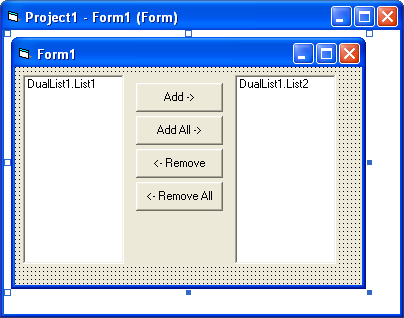
The DualList control is a classic example of how you can create multiconstituent UserControls to save yourself untold grief for common needs. Moving items between lists is a capability many applications require � why recode it in each? It's far better to simply drop a UserControl (CTL) module into the project and double-click on its toolbar icon. Here's what you see when you do that, and then drag a new instance of the DualList control onto the default form:
The UserControl exposes, as properties, every one of its constituent controls. This allows you to manipulate their properties however you wish. All the wrapper does is keep everything in sync, including mundane tasks such as setting the Font property for every control, and so on. You control the button text and list contents, then turn the controls over to the user so they may move list items between lists however they want. Simple!
If the layout I chose doesn't suit you, just open the UserControl designer, and rearrange things. Then, crawl into the UserControl_Resize event, and tweak the code there to enforce your new design.
Updated to Include New Reordering List
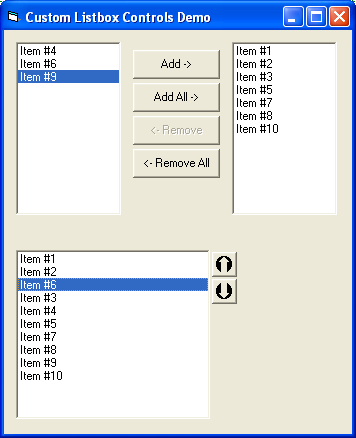
Another extremely common task is allowing the user to reorder a list of items. You've probably coded it a hundred times? Put all the items in a standard listbox, then add buttons to move a selected item up or down. On a recent project, I decided I was tired of doing that over and over, so I stuck it all inside a new control (CTL) module. This is the result:
You can now drag this CTL file into any project you're working on, and immediately put it to use. I chose a slightly different approach with exposing the constituent controls on this custom control, than I did on the earlier DualList control. The ReorderList control directly reflects many of the intrinsic properties and methods of the contained ListBox control. It also, of course, directly exposes the ListBox for those times when you need direct access. But this approach works well when there's just one main contained control, as you can write code as simply as:
Note that in the For loop, I was able to directly AddItem on my ReorderList control, but had to actually point at which list to add the item to in the DualList control instance.
This sample, or the one from which it originally derived, was published (or at least peripherally mentioned) in the following article(s):
- Fill in Irregularly Shaped Areas, Ask the VB Pro, VBPJ, August 2001
No APIs were harmed in the making of this sample.

Please, enjoy and learn from this sample. Include its code within your own projects, if you wish. But, in order to insure only the most recent code is available to all, I ask that you don't share the sample by any form of mass distribution. Download DualList.zip, 11Kb, Last Updated: Monday, June 22, 2009

|
Make a donation
today, to support maintaining this library of Classic VB Code code and articles. |

|
Copyright ©1995-2024,
Karl E. Peterson, All Rights Reserved Worldwide.
Nothing on this web site may be reproduced, in any form,
without express written permission.