|
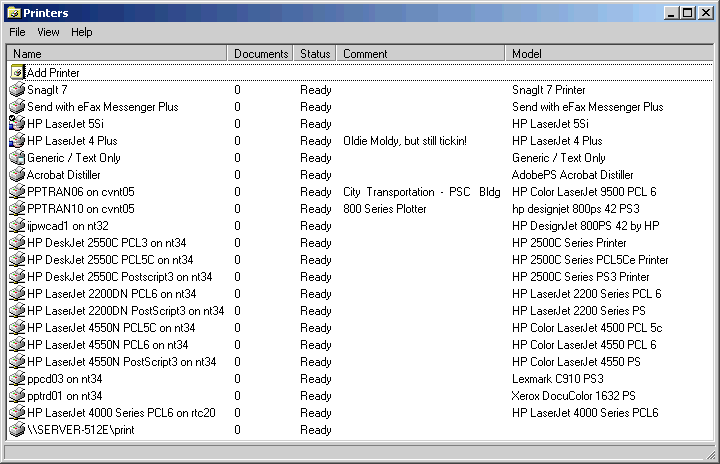
This sample tries to cover all the bases in regard to querying and controlling printers within Windows. The underlying code is presented through a user interface that closely mimics that found when you Open the Printers dialog:
Some of the features demonstrated in the accompanying UI include:
- enumerate installed printers,
- display all the standard printer properties including present status,
- fire up the "Add Printer" wizard,
- open any installed printer's Properties dialog,
- determine and set the system default printer,
- open another window to view the print queue of any printer,
- many more...
If you open the print queue window of any installed printer, you can directly monitor the progress of all print jobs currently in the queue, and (provided you have sufficient permissions) the ability to control those jobs by pausing, resuming, reorder, or even deleting them. You can, with proper permission, pause all printing as well.
The code behind the sample is extensive! Scroll down for a look at all the APIs that are demonstrated. For the most part, this sample attempts to provide information from the printer, and doesn't go very deep into the realm of setting printer properties. The code is organized into a collection of hierarchical object structures, one for each installed printer:
CPrinterInfo ==>> CDevMode CPrinterJobs ==>> CPrinterJobInfo (collection) CPrinterInfo is the base class, which is configured by assigning its DeviceName property (see code below) to the name returned by the same property of any one of VB's Printer objects. IsDefault is the only other read-write property of this class, which may be used as the name implies. Retrieving or setting the systemwide default printer is highly OS-specific. The minimum details are provided in the Knowledge Base, but I think you'll like the implementation here a bit better as it combines (in far better style <g>) the best of these articles:.
HOWTO: Retrieve and Set the Default Printer in Windows
http://support.microsoft.com/kb/q246772HOWTO: Set the Default Printer Programmatically in Windows 95, Windows 98, or Windows Me
http://support.microsoft.com/kb/q140560/HOWTO: Set Which Printer Is the System Default Printer
http://support.microsoft.com/kb/q266767/The CPrinterInfo class also demonstrates how to dereference a PRINTER_INFO_2 structure and its embedded DEVMODE structure, as they're returned from a GetPrinter call. This can be a tedious process, as you need to dereference a whole slew of string pointers. In fact, CPrinterInfo delegates the task of capturing the DEVMODE data, by simply passing the pointer to a new instance of a CDevMode class. CDevMode then does the dirty work of reconstructing this information packed structure from memory.
CPrinterJobs offers the means to monitor any given printer's queue, after assigning the desired DeviceName property. A collection of CPrinterJobInfo classes are offered for query. Use CPrinterJobs to manage the queue itself. CPrinterJobInfo exposes a wealth of information about each job, by effectively wrapping up the contents of the JOB_INFO_2 structure. You can retrieve the number of document name, user, page count, and many other interesting statistics about each job through this class.
Bug in VB5 Printers Collection
Also included in the sample is a simple little demo that shows how to detect and overcome a bug in VB5's Printers collection. As you're probably away, installed printers may be discovered "universally" by querying the PrinterPorts section of Win.ini. Well, you may also be aware that INI calls won't actually fail, if you don't preallocate a buffer large enough to return the complete results, but rather just obligingly fills what buffer was provided. VB5 didn't test this condition, and expand the buffer in those cases where lots of printers were installed.
FIX: Printers Collection May Not Contain All Printers in the Printers Folder
http://support.microsoft.com/kb/q253612/If you're coding in VB5, and depend on a fully-populated Printers collection, consider using the enclosed CPrinters class in place of the native offering. At the least, you will know whether the native collection is hosed, using a simple test like this:
What won't this sample show you? Well, it doesn't let you choose which tray your printer will use, or flop between portrait and landscape, or anything else of that sort. This sample is designed mainly to retrieve information from the Printers collection and its elements, and take minimal control over each printer's print queue and associated jobs.
This sample, or the one from which it originally derived, was published (or at least peripherally mentioned) in the following article(s):
- Enhance the Printers Collection, Desktop Developer, VSM, February 2002
This sample uses the following API calls:
Module Library Function CDevMode.cls kernel32 RtlMoveMemory CPrinterJobInfo.cls kernel32 FileTimeToLocalFileTime
FileTimeToSystemTime
lstrlen
RtlMoveMemory
SystemTimeToFileTime
SystemTimeToTzSpecificLocalTimeCPrinters.cls kernel32 GetProfileString CPrnInfo.cls kernel32
user32
winspool.drvFormatMessage
GetProfileString
GetVersion
GetVersionEx
lstrlen
RtlMoveMemory
WriteProfileString
SendMessageTimeout
ClosePrinter
EnumPrinters
GetDefaultPrinter
GetPrinter
OpenPrinter
PrinterProperties
SetDefaultPrinter
SetPrinterCPrnJobs.cls kernel32
winspool.drvGetVersionEx
RtlMoveMemory
ClosePrinter
EnumJobs
GetJob
GetPrinter
OpenPrinter
SetJobCStopWatch.cls winmm timeGetDevCaps
timeGetTimeFAbout.frm shell32
user32ShellExecute
GetWindowRect
SetCursorPosFPrinters.frm user32 GetWindowLong MHexDump.bas kernel32 lstrlen
lstrlen
RtlMoveMemoryMHookMe.bas kernel32
user32RtlMoveMemory
CallWindowProc
GetProp
GetWindowLong
RemoveProp
SetProp
SetWindowLongMJobCount.bas winspool.drv ClosePrinter
GetPrinter
OpenPrinterMListViewEx.bas kernel32
user32RtlMoveMemory
GetClientRect
GetWindowLong
GetWindowRect
InvalidateRect
SendMessage
SendMessage
SetWindowLongMPrnDefault.bas kernel32
winspool.drvGetProfileString
GetVersionEx
lstrlen
RtlMoveMemory
EnumPrinters
GetDefaultPrinterDon't see what you're looking for? Here's a complete API cross-reference.

Please, enjoy and learn from this sample. Include its code within your own projects, if you wish. But, in order to insure only the most recent code is available to all, I ask that you don't share the sample by any form of mass distribution. Download PrnInfo.zip, 134Kb, Last Updated: Wednesday, September 13, 2006
The following resources may also be of interest:

|
Make a donation
today, to support maintaining this library of Classic VB Code code and articles. |

|
Copyright ©1995-2024,
Karl E. Peterson, All Rights Reserved Worldwide.
Nothing on this web site may be reproduced, in any form,
without express written permission.